
Transferring Large Files Securely Over the Internet
Gerhard G. StocKinger · Published on August 3, 2026
Email attachments are only suitable to a limited extent for videos, photo collections, project folders, or extensive documentation. In such cases, I like to use SwissTransfer. I also encrypt confidential documents before uploading them.
The simple rule: SwissTransfer handles the transfer. 7-Zip provides additional protection for sensitive data.
The Quick Start Guide
- Place all the files you want to transfer in a single folder.
- Encrypt confidential data using 7-Zip from the official website.
- Upload the finished archive to SwissTransfer.
- Set the expiration time and the allowed number of downloads as short as possible.
- Send the download link and password via two different communication channels.
Important: Do not send the password in the same email as the download link.
Explained step by step
1. When is SwissTransfer a good option?
SwissTransfer is suitable for photos, videos, presentations, print files, project documents, large PDF files, and entire folder structures, among other things.
According to the provider, the free service allows transfers of up to 50 GB. The files are processed in Swiss data centers and automatically deleted once the selected time period has expired.
However, SwissTransfer is not a permanent data storage solution. Therefore, please continue to keep your own copy of the transferred files.
2. Prepare Files Before Sending
First, place all the files you want to transfer in a single folder. Use a descriptive name, such as Project Name_Documents_2026-08-18.
Before shipping, please check the following:
- Are all the necessary files included?
- Does the folder accidentally contain private or unnecessary documents?
- Can the documents be opened?
- Does the content need to be encrypted as well?
A shared archive preserves the folder structure and is easier for the recipient to navigate. While this doesn't necessarily make photos, videos, and many PDF documents much smaller, a single archive file is still convenient for sending them.
3. Creating an Encrypted Archive in Windows
Windows 10 and Windows 11 can create standard ZIP files. However, Windows does not currently offer built-in, reliable password protection for ZIP or 7z archives. Microsoft recommends using a third-party application such as 7-Zip for encrypted archives.
- Download and install 7-Zip from the official 7-Zip website.
- Right-click the desired folder.
- In Windows 11, select " Show more options " first, if necessary.
- 7-Zip → Open "Add to Archive."
- Preferably select 7z as the archive format.
- Enter a secure password in the " Encryption " section.
- Select AES-256 as the encryption method.
- Select the " Encrypt filenames " option.
- Click OK to confirm.
Open the finished archive to test it. 7-Zip should prompt you for the password when you try to access the contents.
Why I Recommend the 7z Format for Sensitive Data
The 7z format supports AES-256 encryption and can also hide the filenames in the archive. Without encrypted filenames, an unauthorized person might be able to see names such as Payroll.xlsx or CustomerData.csv view, even if the files themselves cannot be opened.
To open the file, the recipient will need 7-Zip or another program that supports encrypted 7z archives.
Alternative: an encrypted ZIP file created with 7-Zip
If a file with the extension .zip If needed, select the archive format in 7-Zip ZIP and as the encryption method AES-256.
Please note: A ZIP file encrypted with AES-256 may not open directly in Windows Explorer. The recipient should therefore also use 7-Zip or a compatible application.
4. Set the Validity Period, Downloads, and Password
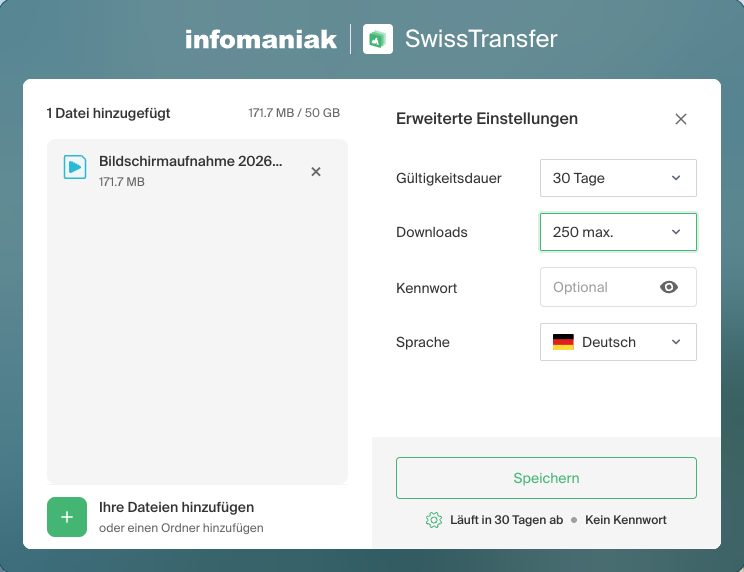
- Open SwissTransfer.
- Add the prepared archive.
- Select "Transfer via Download Link."
- Under " Advanced Settings," set the validity period, downloads, and optional password.
- Start the transfer and then copy the generated link.
Validity Period
SwissTransfer currently offers 1, 7, 15, or 30 days. Choose the shortest duration that is realistic for the recipient. For a typical transaction, one or seven days are often sufficient.
For 30-day transfers, additional confirmation is required: According to the current terms and conditions, SwissTransfer notifies the sender on the twelfth day. Without confirmation, the transfer is deleted on the fifteenth day; with confirmation, it remains available until the thirtieth day.
Maximum Number of Downloads
Up to 250 downloads can be allowed per file. Set the limit only as high as necessary. If exactly one person is expected to download the file, a very low limit makes sense; for multiple recipients or multiple devices, you should allow for an appropriate buffer.
The download limit restricts the use of the link, but does not specify who is allowed to download. If the link is shared, someone else can use it as long as the limit has not yet been reached.
Optional Password
The SwissTransfer password serves as a useful access restriction: Anyone who only knows the link cannot start the download without the password. However, it does not provide local end-to-end encryption of the files and does not prevent the provider from having to process the content as part of its operations or due to legal obligations.
Under the current terms, Infomaniak states that files are automatically scanned for malware and that automated or manual checks are also possible if necessary. Infomaniak may cooperate with the relevant authorities and disclose necessary information if required by law.
For sensitive data, it's therefore better to pack the files yourself into a password-protected 7z archive with AES-256 encryption and encrypted filenames before uploading them. That way, the contents will remain unreadable without your own archive password.
Before sending the link, open it in a private browser window to test it. This will allow you to determine early on whether the download and the selected access protection are working as expected.
5. Send the download link and password separately
Send the download link and the archive password using two different methods. For example:
- Download link via email
- Password via phone, text message, WhatsApp, Signal, or another suitable messaging app
This separation applies to both the optional SwissTransfer password and the password for your self-encrypted archive. The link and password should not be included in the same email or message.
Use a new, sufficiently long password for each archive. Company names, project names, dates of birth, or passwords already used for other services are not good choices.
How secure is SwissTransfer?
SwissTransfer is operated by the Swiss company Infomaniak Network SA. According to the provider, files are protected using AES-GCM during transmission and encrypted using LUKS and AES-256 on the storage systems. Data processing takes place in data centers in Switzerland.
These measures are well-suited for standard business file transfers. However, they should not be equated with proven end-to-end or zero-knowledge encryption. The transfer password prevents individuals without the password from downloading the files, but it does not encrypt the files with a key known exclusively to the sender and recipient. For content requiring special protection, we therefore recommend additional local encryption before uploading.
In short: SwissTransfer is a good money transfer service, but it's not a safe deposit box.
What other data should be encrypted locally?
- Health and Patient Data
- Personnel Records
- Login Credentials and Recovery Keys
- Complete customer or address databases
- Financial and Tax Documents
- M&A Documents and Trade Secrets
- Source code containing passwords, tokens, or other credentials
- Copies of identification cards and similar forms of identification
In the case of statutory, contractual, or internal security requirements, it must also be determined whether the selected transmission method is approved for the specific purpose.
Frequently Asked Questions
Can Windows create a password-protected ZIP file on its own?
No. Windows can create regular ZIP files, but not encrypted archives with a custom password. You'll need an additional application, such as 7-Zip, to do that.
Do I always have to compress files before using SwissTransfer?
No. However, if you have multiple files or entire folders, an archive is easier to manage. For confidential content, it's also the easiest way to encrypt the data locally before uploading it.
Is SwissTransfer's password protection sufficient?
For ordinary documents, it provides useful additional access protection. For sensitive data, you should also encrypt it locally before uploading it.
What happens if the archive password is lost?
A strongly encrypted 7z archive usually cannot be recovered without the correct password. Therefore, check the password before sending it and be sure to provide it to the recipient carefully.
My Recommendations for Use
For quotes, presentations, photos, videos, project documents, and standard customer documents: Use SwissTransfer, enable password protection, select a short validity period, limit downloads, and send the password separately.
For content that requires special protection: First, encrypt the files locally using 7-Zip and AES-256, then transfer them via SwissTransfer and provide the archive password through a separate communication channel.